Overview
Online payment is available via Credit Card and ACH (e-Check). Members can also opt-in to secure Autopay. NOTE: For data security reasons, the Chamber cannot accept credit card payments in person or over the phone.
Bookkeepers – see details below regarding downloading invoices.
Accessing the Billing page
There are two ways for members to view and pay open invoices:
From the Invoice Email (No Login Required) | Members can search their email records for the subject line: “Annual Membership Investment Invoice | Basalt Chamber of Commerce”. Clicking the View/Pay Online button at the bottom of the email will direct them to the secure billing page. Skip ahead to Processing a Payment below.
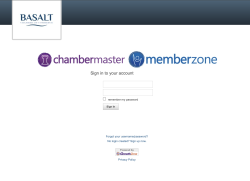
Via the Member Portal | Memberss can log into the Member Portal. (Forgot your username/password? | No login created? Sign up now).
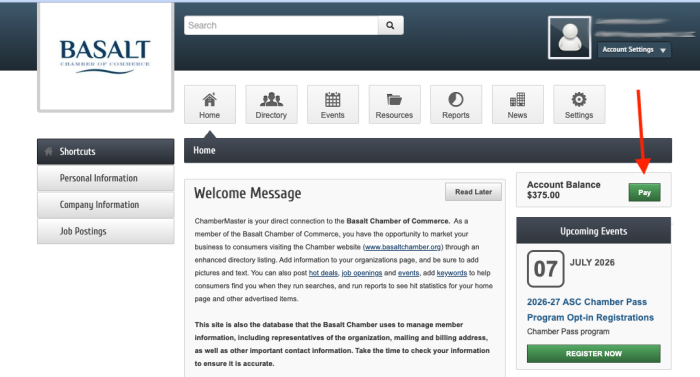
From the home page of the member portal, select the Pay button located in the right-hand column. This action will take you to the Billing area. If there is no content in that area, an invoice has not been generated.
NOTE: The home page also includes upcoming events, making it easy to register for Chamber programs while logged into the member portal (such as the Chamber Pass Program). Click the Register Now button.
Processing a Payment
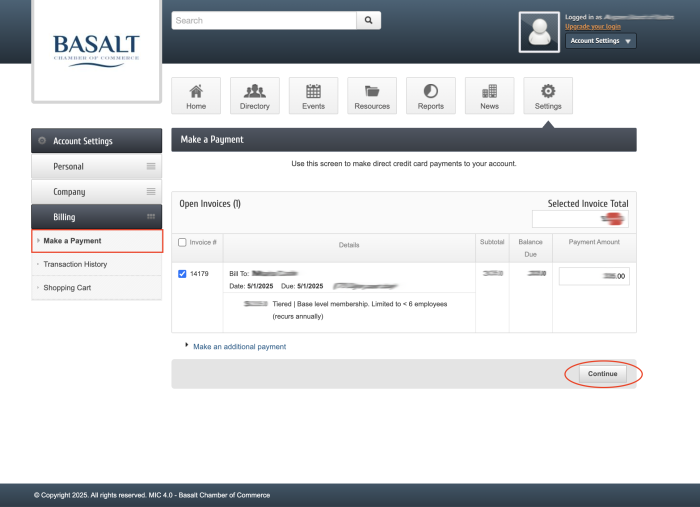
In the Billing area, review all open invoices. Select the checkbox next to the specific invoice(s) to be paid. Select “Continue” to proceed to the payment section.
In the Shopping Cart section, either enter credit card or ACH bank account information, OR select a saved Payment Profile.
NOTE: ACH Preference for Larger Investments | For membership investments above $1,000, the Chamber asks members to consider paying via ACH. This direct bank transfer bypasses credit card processing fees, allowing more of the investment to directly fund Chamber initiatives. Instructions: How to create a payment profile for one-time or recurring payments.
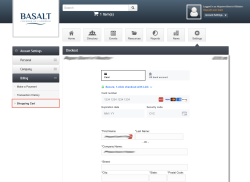
Credit Card payment (left tab)
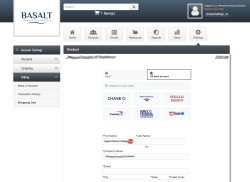
ACH payment (right tab)
Checkout Successful! – A confirmation message indicating of payment processing will appear on the screen.
Paying a bill and downloading an invoice without an attachment
Bookkeepers – If a client forwards a billing statement without an invoice attachment, the following steps should be taken to both pay the bill and download a copy of the invoice:
Accessing the Billing page
Follow the steps above to access the Billing area. If a client has forwarded the billing statement, the easiest method is to scroll to the bottom of the original email, and click the View/Pay Online button.
Downloading an invoice
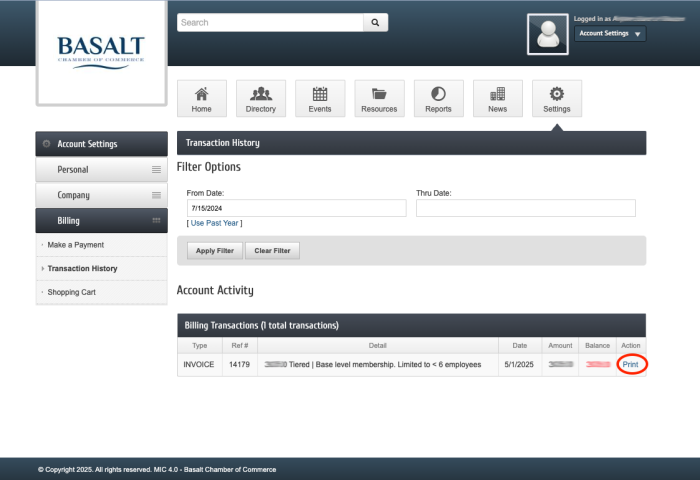
To find and download all invoices, navigate to the Transaction History page. In the left-hand column under Billing, click Transaction History. Under the “Account Activity” section, click Print next to the relevant invoice details. A PDF copy of the invoice will then automatically download, unless the computer’s security settings prevent this action.